




The web is essentially a giant digital panopticon, and the internet’s worst-kept secret is that almost every site you visit is quietly snitching on you.
Trackers are tiny, invisible bits of code tucked into websites, mobile apps, and emails, running silently across your devices. Their sole job is to watch what you click, how long you linger on an embarrassing article, where you live and report that data back to third parties. Meanwhile, those annoying cookie banners you blindly click every morning aren't doing a single thing to stop them.
Most trackers are run by data brokers, ad networks, and invasive analytics companies collecting your data with zero real consent. To help you reclaim your privacy, this guide covers how trackers work behind the scenes, the different types sneaking around your browser, what they actually figure out about you, and how to shut them down for good without resorting to useless advice like "just install an extension, bro."
What Actually Happens When You Visit a Website
When you load a typical news article, it looks like one page from one publisher. What's actually happening is a lot messier.
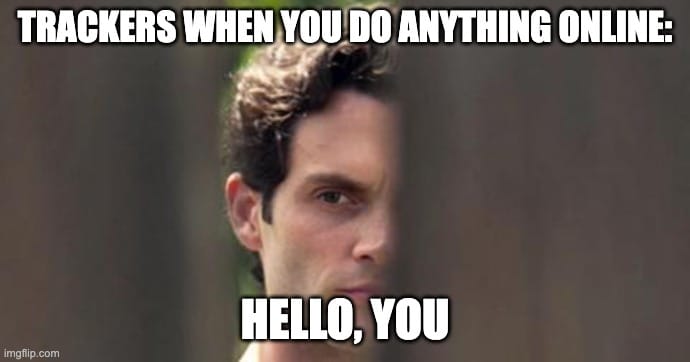
Before you've read a single sentence, your browser is already firing off dozens of requests to companies you've never heard of. Each one drops a small identifier, logs the URL, clocks how long you stayed, notes what you clicked, estimates your location from your IP, and grabs details about your device. The next time you show up on a completely different site that uses the same tracker, they recognize you. They remember where you've been.
WhoTracksMe, which tracks trackers (try saying that 5 times fast) across millions of pages (yes, we see the irony), consistently finds that a typical news homepage triggers dozens of third-party requests within the first second of loading. You get absolutely nothing from them, but they get a lot from you.
Although no single tracker has the full picture, they share data, and the profile assembled from a hundred trackers across fifty different sites is a lot more detailed than any one piece suggests. The pieces aren't the problem. The assembled profile is.
Cookies vs. Trackers: Are They Actually the Same Thing?
No, not exactly, although it’s easy to confuse them. In short, cookies are just little breadcrumbs of data stored in your browser, while trackers follow you around and monitor your behavior on the web. Are some cookies trackers? Yup. Are all cookies trackers? Nope.
When we say “cookies,” you’re probably picturing the chewy, chocolatey, emotionally supportive kind. Sadly, digital cookies are less delicious. They’re small files websites use to remember things about you between visits. The cookie that keeps you logged into your email? Useful. The one that saves your language preference? Also useful. The one that lets an ad network recognize you across 47 websites because you looked at one pair of shoes? Now, that’s a problem.
The trouble starts with third-party tracking cookies. These aren’t usually placed by the site you’re visiting directly. They’re dropped by advertisers, analytics companies, or other third-party services embedded on that page. Their job is to recognize you from site to site and build a profile of what you click, read, buy, watch, and doom-scroll.
But here’s what the cookie banner definitely doesn’t tell you: tracking is much bigger than cookies.
Pixels can track you without storing a traditional cookie. Browser fingerprinting can identify your browser based on your device, settings, fonts, screen size, extensions, and other tiny details. Server-side tracking can log your behavior before your browser even gets a chance to block anything.
So clicking “Reject All” on a cookie banner might block some tracking cookies, but it doesn’t magically stop every tracker on the page. It handles one slice of the surveillance lasagna. The rest may keep running like nothing happened.
The Types of Trackers You'll Actually Run Into
Before we get into the fun little nightmare buffet, it helps to know that trackers aren’t one single thing. It’s a whole category of tools, tricks, and workarounds used to recognize you, follow your behavior, and connect your activity across websites, apps, emails, and sometimes even networks.

Tracking Cookies
Third-party advertising cookies work by planting a unique identifier in your browser the first time you visit any site running a particular ad network's code. After that, that same network recognizes you everywhere else they're embedded, and they're embedded on a lot of sites. You visit one, they've got you. Simple as that.
The good news is this one’s actually dying. Safari and Firefox have blocked third-party cookies by default for years, and Chrome has introduced restrictions too. Browsers started killing the environment these cookies needed to survive, and advertisers took the hint.
The bad news? They didn't take it lying down. They just moved on to everything else on this list.
Tracking Pixels and Web Beacons
A tracking pixel is exactly what it sounds like: a tiny, invisible one-by-one pixel image embedded in a page or email. When it loads, the server hosting it logs your IP address, browser, device type, and the exact timestamp. You never see it. It never asks permission.
The Meta Pixel is the most widely deployed version of this, sitting on millions of websites and reporting behavior back to Meta, whether or not you have a Facebook account. Never signed up? Doesn't matter. They're still collecting.
Email tracking works the same way. That "did they open my email?" feature that every marketing tool loves? Pixel. It fires the moment your email client loads images, which most do by default. So yes, someone out there knows you opened that newsletter at 11:47 pm on a Tuesday.
Browser Fingerprinting
Your browser's unique combination of characteristics (screen resolution, installed fonts, time zone, language, GPU model, browser version, audio processing quirks) combines into something unique enough to identify your device with high accuracy. Across sessions, across browsers, even after you've cleared every cookie you own and gone full incognito. It doesn't matter.
The three main techniques are canvas fingerprinting, which draws a hidden image and reads how your specific hardware rendered it (different hardware renders it differently, and that difference is your fingerprint), audio fingerprinting, which does the same thing using the AudioContext API to process a synthetic sound, and font and GPU fingerprinting, which detects which fonts you have installed and how your graphics card handles rendering.
Browser fingerprinting became the industry's go-to fallback once cookies started dying off. Cookies got blocked, and fingerprinting filled the gap. If you want to see exactly how identifiable your own browser is, the EFF's Cover Your Tracks tool will show you. Most people aren’t prepared for what they find.
Server-Side Tagging and CNAME Cloaking
When browsers started blocking third-party cookies, advertisers didn't pack up and go home. They just pissed around and moved the tracking off the browser entirely.
With server-side tagging, the website collects your behavioral data first, then sends it to tracking and analytics companies from its own server. So instead of your browser directly contacting a third-party tracker, your browser contacts the website you’re already visiting. Then the website quietly forwards that data on the back end.
That matters because most privacy tools are designed to spot suspicious third-party requests in your browser. If the tracking request never happens in your browser, there’s less for an extension to catch. To the outside world, it looks like you’re only talking to the site you chose to visit. Behind the scenes, your data may still be getting passed along.
CNAME cloaking works a little differently. A third-party tracker gets disguised as part of the publisher’s own domain. So something like analytics.thenewssite.com might look like it belongs to thenewssite.com, but actually points to a tracker’s servers.
To your browser, it looks first-party. To many blocking tools, it looks first-party. So the block never fires, because the tracker is wearing the website’s clothes like a tiny little surveillance goblin.
The tracking didn’t stop. It just moved somewhere most tools can’t easily see it. And that’s not okay.
Mobile and App Trackers
Websites have cookies. Apps have advertising IDs. On iOS, it’s called the IDFA. On Android, it’s the GAID or Advertising ID. These IDs help advertisers recognize the same device across different apps, similar to how tracking cookies recognize the same browser across websites.
So if you open a shopping app, a recipe app, and a free game, and all three use the same ad network, that network may be able to connect your activity across all three. Congratulations, you’ve been app-stalked.

Inside those apps, embedded tools called SDKs do a lot of the tracking work. SDKs from companies like Facebook, Google Analytics, AppsFlyer, and Adjust can report usage data, device details, location signals, purchases, ad interactions, and behavioral patterns back to their parent companies.
Sometimes this happens while you’re using the app. Sometimes it happens through background activity, depending on the app’s permissions and setup. Either way, the app may be doing more than showing you recipes or letting you fling cartoon birds at poorly built pig houses.
Apple’s App Tracking Transparency prompt helped by forcing apps to ask before tracking users across other companies’ apps and websites. But it didn’t stop first-party data collection inside apps, and it didn’t magically remove every SDK. It helped. It’s not a full solution.
If you want to see which trackers are embedded in a specific Android app, Exodus Privacy keeps a public database. The lists are usually longer than people expect.
Network-Level Identifiers
Every Wi-Fi adapter has a MAC address, which is a hardware identifier used when your device connects to networks. Modern phones and laptops often randomize this address to make passive tracking harder, but Wi-Fi can still leak more than people realize.
Your saved Wi-Fi networks can reveal a lot on their own. A device that remembers a gym, a hospital, a bar, an airport lounge, and a specific employer’s office is basically carrying around a tiny location diary. Anyone who gets access to that list doesn’t need GPS to learn something about your daily life.
Most privacy tools don’t touch this layer, because browser extensions can’t reach your device’s saved network history. They can block cookies, scripts, and trackers in your browser, but they can’t clean up the Wi-Fi networks your operating system has stored.
What Do Trackers Actually Know About You?
All of the tracking methods we talked about above feed into one thing: a profile. A very detailed one.
Identity comes first, especially if you've ever submitted an email address to any site that shares data. Demographics get inferred from browsing: income bracket, age range, gender, and household composition. Location comes from your IP address, GPS signals from apps, and Wi-Fi history. Interests come from every article you read, every product page you open, every search you run.
Then, it gets more specific. Political leaning, inferred from the news sources you visit. Religious affiliation, inferred from browsing patterns. Health concerns, inferred from symptom searches. Sexual orientation, inferred from content engagement.
To make it concrete: a tracker network can build something like this. A 32-year-old in a mid-sized city recently shopped for running shoes, visited fertility-related content three times in the last month, reads a mix of center-left and center-right news, and fits into a specific household income bracket.
None of that was handed over knowingly. All of it was assembled from passive observation across dozens of sites.
And if you think "Well, at least it's anonymized," you’d be wrong. Researchers have repeatedly shown that browsing histories of any meaningful length are unique enough to re-identify a single person even after the obvious identifiers are stripped out. The anonymization claim mostly protects the people selling the data, not the people in it.
Why a Browser Extension Only Covers Part of This
If you’re thinking, “Okay, I’ll just install a browser extension and call it a day,” here’s the thing: a browser extension is a good first step, but it's not the whole answer.
A browser extension protects one browser on one device. Chrome extension on your laptop? Great. It can help block trackers inside Chrome on that laptop. But it does nothing for your phone apps, smart TV, game console, or tablet.
That’s where DNS-level filtering helps. Every device uses DNS to translate domain names into IP addresses before making a connection. If a known tracker domain is blocked at the DNS level, the device can’t reach it in the first place. It doesn’t matter whether the request came from a browser, an app, a smart TV, or anything else with a Wi-Fi chip. The block happens before the connection is made.
Browser tools are still worth keeping, though. DNS-level filtering is great at blocking known domains, but it can’t see everything happening inside a web page. Browser extensions can catch in-browser scripts, cosmetic junk, and some trackers that DNS alone can’t neatly separate, especially when tracking is served from the same domain as the site itself.
The strongest setup is layered: DNS-level filtering for the whole connection, browser-level blocking for the browser, and anti-fingerprinting protections for the sneaky stuff that tries to slip through both.
How to Actually Stop Trackers (A Layered Approach)
Not a flat list of things you could maybe try. A hierarchy, weakest to strongest. Start where you are and add layers as you go.
| Layer | Tool | What it covers | Network-wide? |
|---|---|---|---|
| 1 | Browser settings | Third-party cookie blocking. Free, minimal effort, weakest coverage. | No |
| 2 | Privacy browser | Firefox, Safari, or Brave block trackers by default — no config needed. | No |
| 3 | Browser extension | Catches scripts settings miss, including some fingerprinting. Windscribe's extension adds user-agent and timezone spoofing. | No |
| 4 | DNS filtering (R.O.B.E.R.T.) | Blocks tracker domains before connection — covers every device on the network. | Yes |
| 5 | VPN + DNS | Encrypts traffic, masks IP, and runs R.O.B.E.R.T. together. Recommended for most people. | Yes |
| 6 | Anti-fingerprinting | Rotates user agent, timezone, language, and GPS signals between sessions. | No |
Layer 1: Browser Settings (Free, and You Have No Excuse)
This is the floor. Open your browser's Privacy or Security settings and turn on third-party cookie blocking and cross-site tracking prevention. It takes two minutes and costs nothing.
Most browsers don't enable this by default, which tells you everything you need to know about whose interests the defaults are designed to serve. It won't stop fingerprinting, it won't stop pixels, and it definitely won't stop server-side tracking, but it's better than nothing, and there's no reason not to do it right now.
Layer 2: A Privacy-Focused Browser
Firefox with Enhanced Tracking Protection set to Strict mode, Safari with Intelligent Tracking Prevention, or Brave (a Chromium-based browser with blocking built in from the start) all go significantly further than Chrome's defaults without requiring you to configure anything.
This is still browser-only protection, so everything outside that one browser on that one device is still fair game, but it's a meaningful step up from browser settings.
Layer 3: Browser Extension
A dedicated tracker-blocking extension catches scripts that browser settings miss, including some fingerprinting attempts and a lot of third-party loads that sneak through default configurations. uBlock Origin, Privacy Badger, and Ghostery are the commonly cited options.
Windscribe's browser extension does standard blocking plus user agent rotation, timezone spoofing, and language spoofing, which start to address fingerprinting rather than just known tracker domains.
Layer 4: DNS-Level Filtering
A browser extension only works inside the browser where it’s installed. DNS-level filtering works earlier in the connection process, before your device reaches a website, app service, ad server, or tracker domain.
Every device on your network uses DNS to look up where it needs to connect. If a known tracker or ad domain is blocked at the DNS level, the connection gets stopped before it loads. That means the protection can apply to your laptop, phone, smart TV, game console, tablet, and anything else using the same filtered connection.
Inside the Windscribe VPN app, R.O.B.E.R.T. handles this at the connection level. If you want standalone, ridiculously granular DNS control across your entire router (or individual devices without running a VPN), Control D, our sister service, is built specifically for that.
Layer 5: VPN Plus DNS Filtering Together
Adding a VPN on top of DNS filtering gives you two extra protections.
First, it encrypts the traffic between your device and the VPN server. That means your ISP can’t see the websites, apps, or services you’re connecting to, so it has a much harder time building a profile from your activity.
Second, it replaces your real IP address with the VPN server’s IP address. That removes one of the easiest signals websites and trackers use to identify your location, connect activity back to you, or recognize you across sessions.
Layer 6: Anti-Fingerprinting
Even with DNS filtering and a VPN running, your browser can still give you away.
Browser fingerprinting uses small technical details about your device and browser, like your user agent, timezone, language, screen size, installed fonts, graphics rendering, and other settings, to create a profile that can be unique enough to recognize you across sessions.
Anti-fingerprinting tools try to fight this by hiding, randomizing, or standardizing those signals. Instead of letting every site see your weirdly specific browser setup, they make you look more generic or harder to consistently identify.
This layer is useful if you want stronger privacy inside the browser, but it can also break some websites. So unless you’re in high-paranoia mode, treat it as an advanced layer rather than the default starting point.

Frequently Asked Questions
Are trackers illegal?
No, but they're regulated to varying degrees. The EU's GDPR and ePrivacy Directive require meaningful consent before most non-essential tracking can happen. California's CCPA and CPRA give residents the right to opt out of data sales. The practical reality is that compliance is uneven, enforcement is slow, and legal grey areas like legitimate interest claims mean most users in regulated regions are still being tracked.
Can a VPN block trackers on its own?
Not by itself. A VPN encrypts your traffic and masks your IP address, which strips the IP-based location signal trackers rely on. But it doesn't stop tracker scripts from running inside your browser or apps. To actually block trackers at the network level, you need a VPN paired with DNS-level filtering. Windscribe ships both together through R.O.B.E.R.T.
What's the difference between tracking and analytics?
Both involve collecting data. First-party analytics is a site measuring how its own visitors use it, typically in aggregate, to improve the product. Tracking means cross-site profiling: the same identifier following you across many unrelated sites to build a behavioral profile that gets sold or used for targeting. The line blurs when an analytics platform is deployed across thousands of sites simultaneously.
How do I see which trackers are on a site?
WhoTracksMe shows historical tracker presence across most major websites. The EFF's Cover Your Tracks tests your own browser and shows how fingerprintable you are. Windscribe's browser extension shows blocked trackers in real time, per page. Your browser's Network tab in developer tools shows every request a page makes, including what's being blocked and what's getting through.
Are some trackers actually okay?
Yes, honestly. First-party analytics help site owners understand how people use their product and where things break. Functional cookies keep you logged in and hold your shopping cart together. The problem isn't data collection in principle. It's invisible cross-site tracking by companies you have no relationship with, no visibility into, and no recourse against. Everything in this article is aimed at that second category.
Does incognito mode block trackers?
No. Incognito mode tells your browser not to save history, cookies, or form data locally after the session ends. While the session is active, tracker scripts run normally. They can still fingerprint your device, log your IP, and identify you through any method that doesn't require local storage. Incognito protects you from whoever uses your device after you. It doesn't protect you from the sites you visited.


