




So, the other day, our CEO did a thing: he installed Omarchy, hooked up Grok, asked it to make a Windscribe plugin, and watched it come to life. So, yeah, we’ve got a Windscribe plugin for Omarchy now.
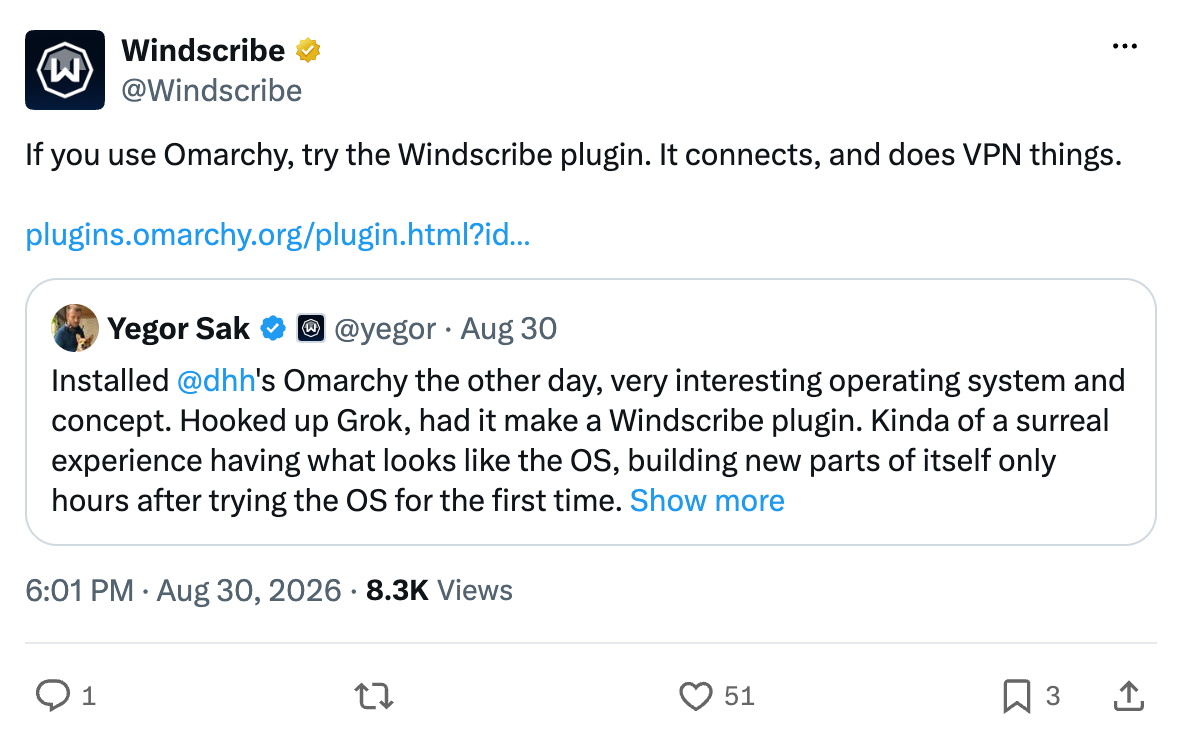
In his words: it was "a surreal experience having what looks like the OS, building new parts of itself only hours after trying the OS for the first time." Welcome to 2026, where operating systems grow their own limbs.
Below is what came out the other end, why it’s actually pretty good, and how to get it on your bar in about eight seconds.
Wait, What’s Omarchy?
For the uninitiated: Omarchy is a keyboard-first Linux desktop setup created by David Heinemeier Hansson (DHH), built on Arch Linux and Hyprland.
It takes a bold, highly opinionated approach to personal computing. Your entire workspace is a tiling window manager designed for speed and efficiency, and the people who use it absolutely love it. It also includes a native plugin system, allowing the top bar on your screen to host powerful custom tools instead of just showing the time and system stats.
That brings us to a simple question: if your whole desktop is built around seamless terminal and keyboard workflows, why should connecting to your VPN require clicking through menus or opening extra apps? It shouldn’t. And now it doesn’t.
The Windscribe Plugin: One Command, Zero Setup After
To be clear, this isn't the full desktop app. It's a lightweight top-bar widget that communicates directly with our official Linux CLI. Think of the plugin as a clean, convenient interface for the exact same terminal engine.
Installing it takes just one command:
omarchy plugin add https://github.com/yegors/windscribe-omarchy.git --enable
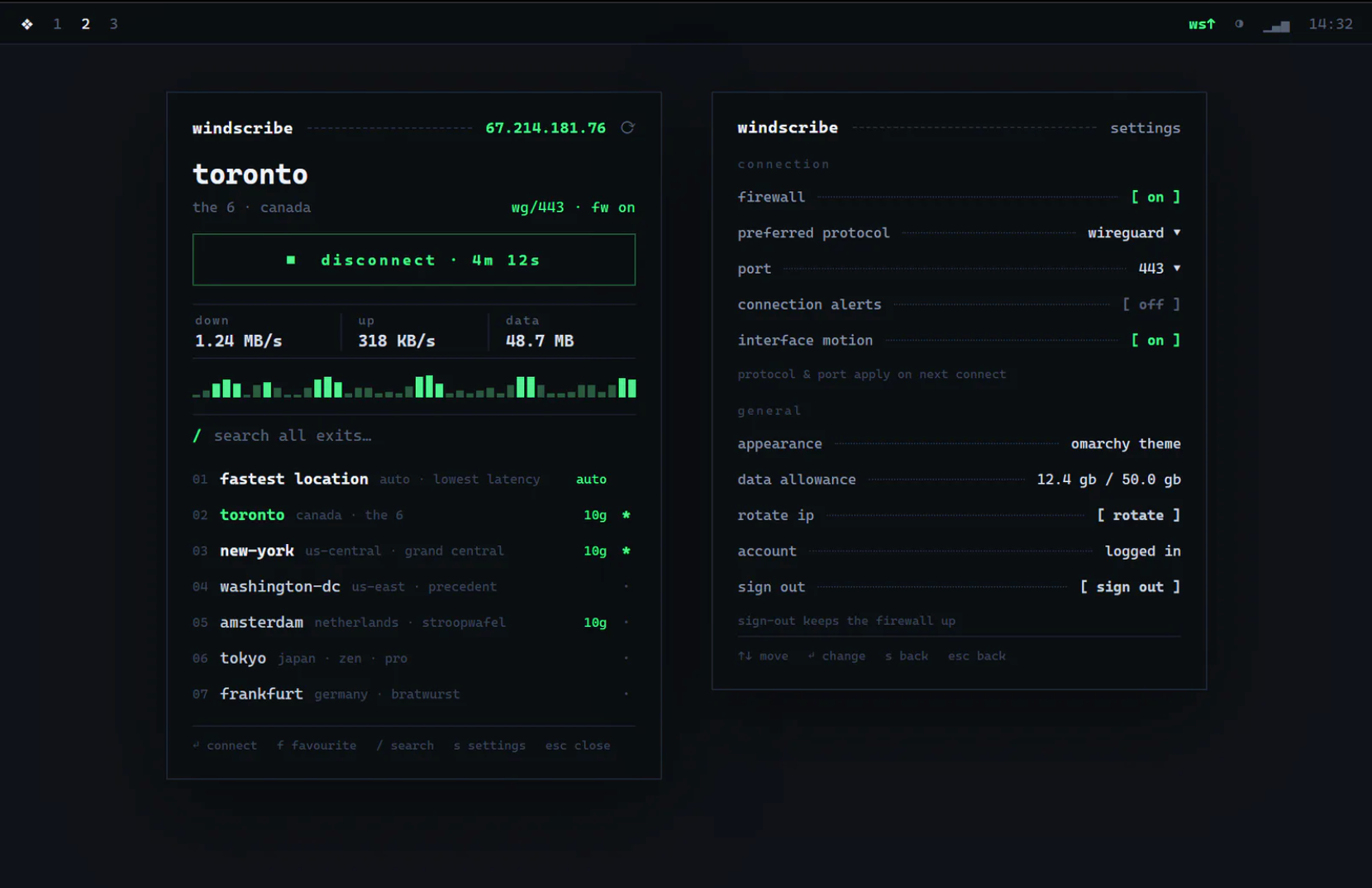
That’s it. Click the new Windscribe badge on your top bar. If you don't have windscribe-cli installed yet, the panel will prompt you to install it. It will open a floating terminal requesting sudo access, fetch the latest stable Arch package straight from our official update API, and verify the build before running anything on your machine.
Next, sign in to your account. Your credentials are submitted directly through Windscribe's official login prompt. The plugin itself never sees, stores, or handles your password.
Once you're logged in, everything is seamless: click to connect, press / to search locations, star your favorite cities to keep them pinned at the top, or simply right-click the top-bar badge whenever you want to toggle your connection on and off without even opening the panel.
So, What’s in the Panel?
Everything you’d actually want:
- Instant Connections: Click the main connect button or tap T to toggle your VPN tunnel on and off from anywhere inside the panel.
- Live Speed and Data Tracking: Monitor your download speeds, upload speeds, and session data with a real-time graph while you work. (To save system resources, byte counters only run while the panel is actively open.)
- Quick Search and Favorites: Press / to search for any city. Tap F to star a location, pinning it to the top of your list right below "Fastest location" (our low-latency recommendation).
- Firewall Control: Press W to toggle the Windscribe Firewall on or off instantly.
- Protocol and Port Settings: Easily set your preferred setup (like WireGuard on port 443). The panel clearly lets you know that changes will take effect the next time you connect.
- IP Rotation: Swap your IP address with a single keypress without having to disconnect or switch cities.
- Data Allowance Tracking: Keep an eye on your remaining monthly data directly in the settings panel so you always know where you stand.
Designed for Your Terminal, Built for Your Theme
The interface relies entirely on crisp typography, using dashed lines, clear numbered lists, and simple bracket toggles. Best of all, the panel automatically adopts the foreground and accent colors of your active Omarchy theme.
Switch your desktop theme, and the Windscribe panel updates instantly alongside it, looking and feeling like a natural extension of the OS.
Everything is built around keyboard navigation:
- j / k or Arrow Keys: Navigate up and down
- Enter: Connect, or toggle a selected setting
- /: Search locations
- f: Star or unstar a favorite server
- s or ← / →: Open settings or go back
- t: Connect or disconnect the tunnel
- w: Toggle the Firewall
- r: Refresh status
- Esc: Clear search, go back, or close the panel
You can also use your mouse for quick actions: middle-click the top-bar badge to refresh your status, or right-click it to toggle your connection without ever opening the panel.
Easy Custom Scripts and Hotkeys
If you like binding controls to custom keyboard shortcuts or writing your own automation scripts, the plugin hooks directly into Omarchy's shell interface:
- Set a variable for the plugin: vpn=com.windscribe.vpn
- Toggle the connection on or off: omarchy-shell "$vpn" toggle
- Connect automatically to the fastest server: omarchy-shell "$vpn" best
- Connect to a specific location: omarchy-shell "$vpn" connectTo "The 6"
- Disconnect from the VPN: omarchy-shell "$vpn" disconnect
- Turn on the firewall: omarchy-shell "$vpn" firewall on
- Rotate your IP address: omarchy-shell "$vpn" rotate
- Check current connection status: omarchy-shell "$vpn" status
The Boring Security Stuff (That We Refuse to Skip)
Because an AI helped write the initial version of this plugin, we put extra human care into auditing its security. Here’s the breakdown:
- Zero Credential Storage: The plugin never sees, stores, or requests your login details. Authentication happens strictly inside Windscribe's official terminal prompt.
- No Telemetry or Extra Tracking: The plugin makes zero background data calls. It displays only what the official CLI reports.
- Safe Input Handling: Terminal inputs are passed as secure arguments rather than open shell commands, and location inputs are validated before touching the CLI.
- Verified Installation: The installer fetches packages exclusively from official Windscribe HTTPS servers. It verifies both the SHA-256 hash and digital signature against our official signing key before requesting sudo permission.
- Secure Logging: All terminal output is sanitized before display.
Updating and Removing
To update the plugin, run omarchy plugin update com.windscribe.vpn followed by omarchy-restart-shell. Restarting the shell ensures Omarchy reloads the updated interface right away.
To remove the plugin widget, run omarchy plugin remove com.windscribe.vpn.
Keep in mind that removing the top-bar widget does not uninstall the underlying Windscribe engine or turn off an active firewall. If you want to completely remove everything, including the core CLI software, disconnect and turn off the firewall first, then uninstall:
- Check your status: windscribe-cli status
- Disconnect the VPN: windscribe-cli disconnect
- Turn off the firewall: windscribe-cli firewall off
- Remove the bar plugin: omarchy plugin remove com.windscribe.vpn
- Uninstall the CLI engine: sudo pacman -R windscribe-cli
Go Forth and Connect
If you use Omarchy and Windscribe, this is the most native the two will ever feel together: one install command, your theme’s colors, your keyboard’s rules, and a VPN that’s one keystroke away. Grab it from the Omarchy plugin marketplace or straight from GitHub, star your favorite exits, and get back to work.
It connects, and does VPN things. What more do you want from a Tuesday?
Some Questions You Might Have
Is this the official Windscribe desktop app?
No. It’s a bar widget that drives the official Windscribe Linux CLI. Same client, same account, same tunnel, new steering wheel.
Does the plugin ever see my password?
No. Sign-in happens in Windscribe’s own prompt inside a floating terminal. The plugin stores no credentials, tokens, or account identity, ever.
Do I need a Pro account?
No. It works with free accounts too, and the allowance tracker in settings will even tell you how much of your monthly data is left.
What happens to the Firewall if I remove the plugin?
It stays exactly as you left it. Removing the widget doesn’t disconnect the tunnel or lower the Firewall. Turn them off with windscribe-cli first if that’s what you want.
An AI built this. Should I be worried?
Healthy skepticism is our love language. The code is MIT-licensed and public on GitHub, the installer verifies signatures before touching sudo, and the plugin’s whole security model is "hold no secrets, trust nothing, validate everything." Read it yourself, that’s what open source is for.


